




 USD
USD EUR
EUR GBP
GBP CAD
CAD AUD
AUD HKD
HKD JPY
JPY KRW
KRW SGD
SGD NZD
NZD THB
THB TWD
TWD English
 繁體中文
繁體中文 日本語
日本語 한국어
한국어 ไทย
ไทย Bahasa Indonesia
 Français
 Español
 Deutsch
 Português
 Nederlands
 Tiếng Việt
By EVPADPro | 02 July 2026 | 0 Comments
How to Restart Your EVPAD TV Box and Fix Lag Issues?
If your EVPAD TV Box feels slow or less responsive, the first thing you should do is restart the device. Restarting helps clear temporary cache, refresh the system, and improve overall performance.
How to Restart Your EVPAD TV Box
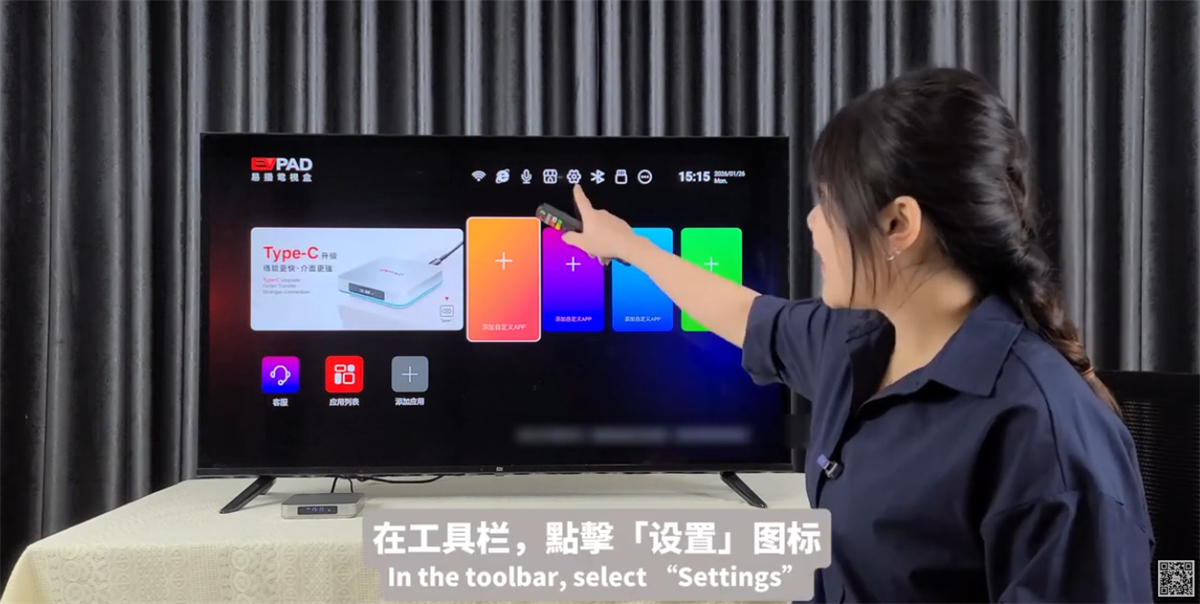
1. On the home screen, open Settings.
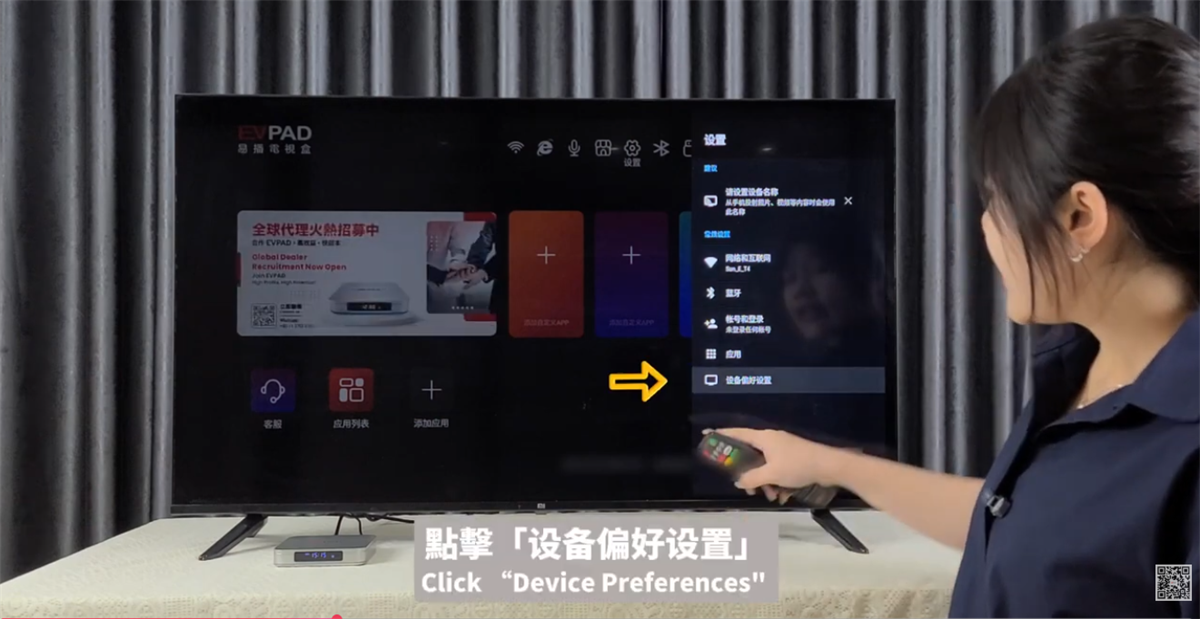
2. Select Device Preferences.
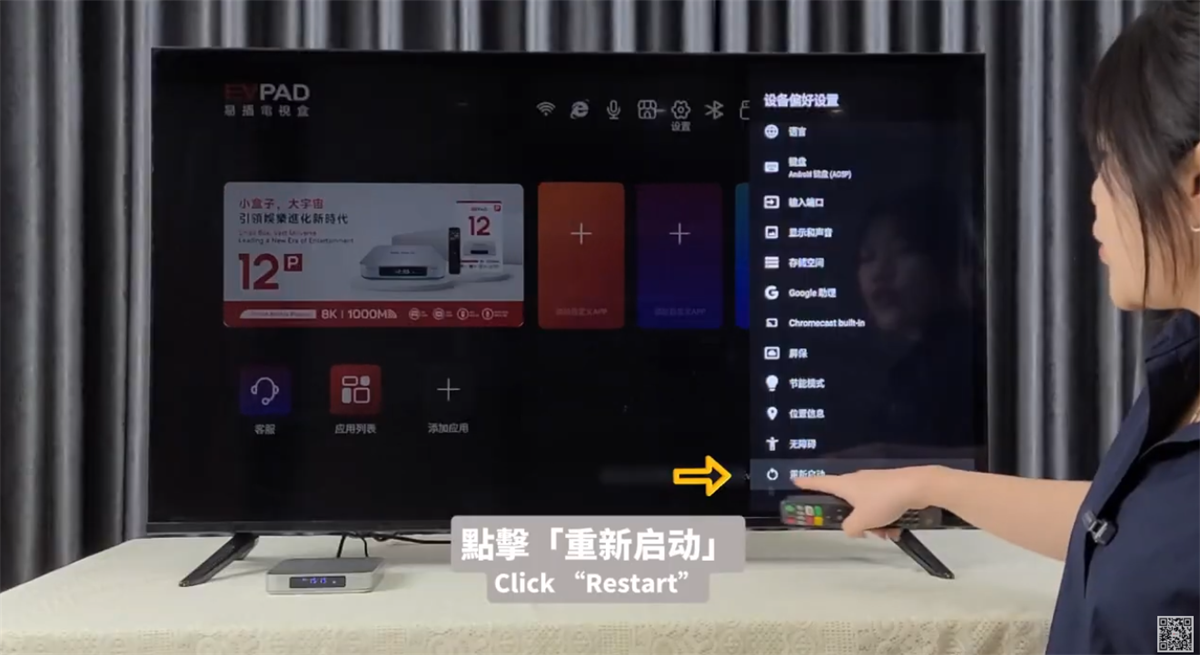
3. Scroll to the bottom and choose Restart.
4. Wait for the TV box to reboot.
After restarting, the system will clear temporary cache and restart background processes, making your EVPAD run more smoothly and more stably.
Pro Tip
If you notice lag, slow navigation, or apps taking longer to load, restarting your EVPAD should always be your first troubleshooting step. A quick restart can often restore smooth performance in less than a minute.
How to Restart Your EVPAD TV Box
1. On the home screen, open Settings.
2. Select Device Preferences.
3. Scroll to the bottom and choose Restart.
4. Wait for the TV box to reboot.
After restarting, the system will clear temporary cache and restart background processes, making your EVPAD run more smoothly and more stably.
Pro Tip
If you notice lag, slow navigation, or apps taking longer to load, restarting your EVPAD should always be your first troubleshooting step. A quick restart can often restore smooth performance in less than a minute.